 InstaSaveKit What’s new
 For desktop Chrome
Your moments,
kept locally.
Save Instagram photos, videos and Stories you own or have permission to keep, directly to your device.
Chrome Web Store listing coming soon
Get started in three steps
Already installed? Pin it, refresh Instagram and choose what to save.
- 1
Pin InstaSaveKit
After installation, pin InstaSaveKit in Chrome’s Extensions menu. Download controls appear directly on Instagram, without a toolbar popup.
- 2
Refresh Instagram
Reload each existing Instagram tab. Use your normal Instagram session; there is no separate extension login.
- 3
Use the download controls
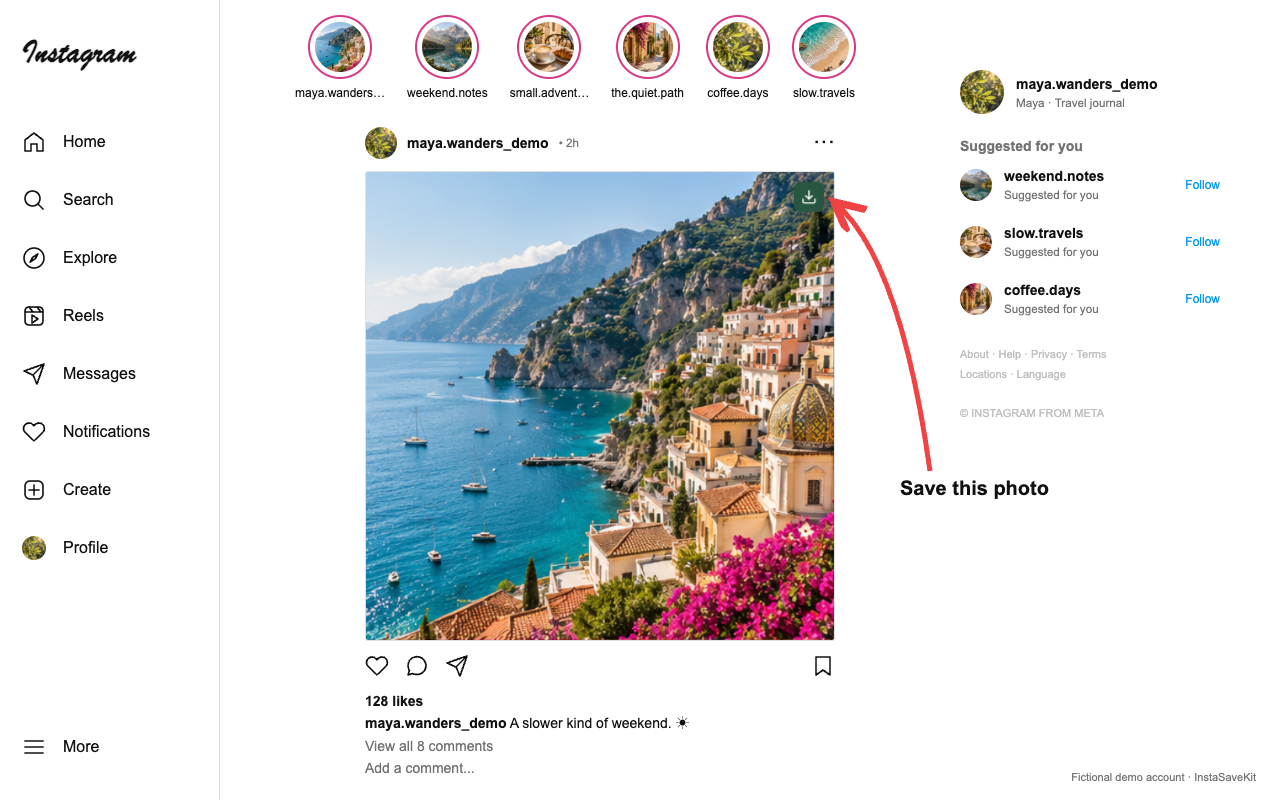
Open media you may save and use its download icon. For a carousel, click its icon, choose items on the page and select Download selected.
Choose what’s worth keeping
Controls for individual saves and deliberate batches, with clear feedback when media is unavailable.
Right on the image
Use small download icons on supported Instagram media, without copying and pasting links.
Photos and videos
Save photos and available direct MP4 videos, including supported Reels. Availability and audio vary by media.
Choose carousel items
Select individual items or all available items in the on-page carousel chooser. Filenames keep the available carousel order.
Stories and Highlights
Save the matched current viewer item. The normal viewing gate still applies, and Instagram records Story viewing as usual.
Downloads from a profile
Choose Download all images, which skips videos, or Download all Highlights for available photos and videos in loaded albums.
Progress you can follow
See saved/found counts and partial results. Stop a profile run, or use Resume and Skip item when a run is paused.
See the controls in action
Production extension controls on fictional demo accounts, using generated sample photography. Select any screenshot to view it at full size.
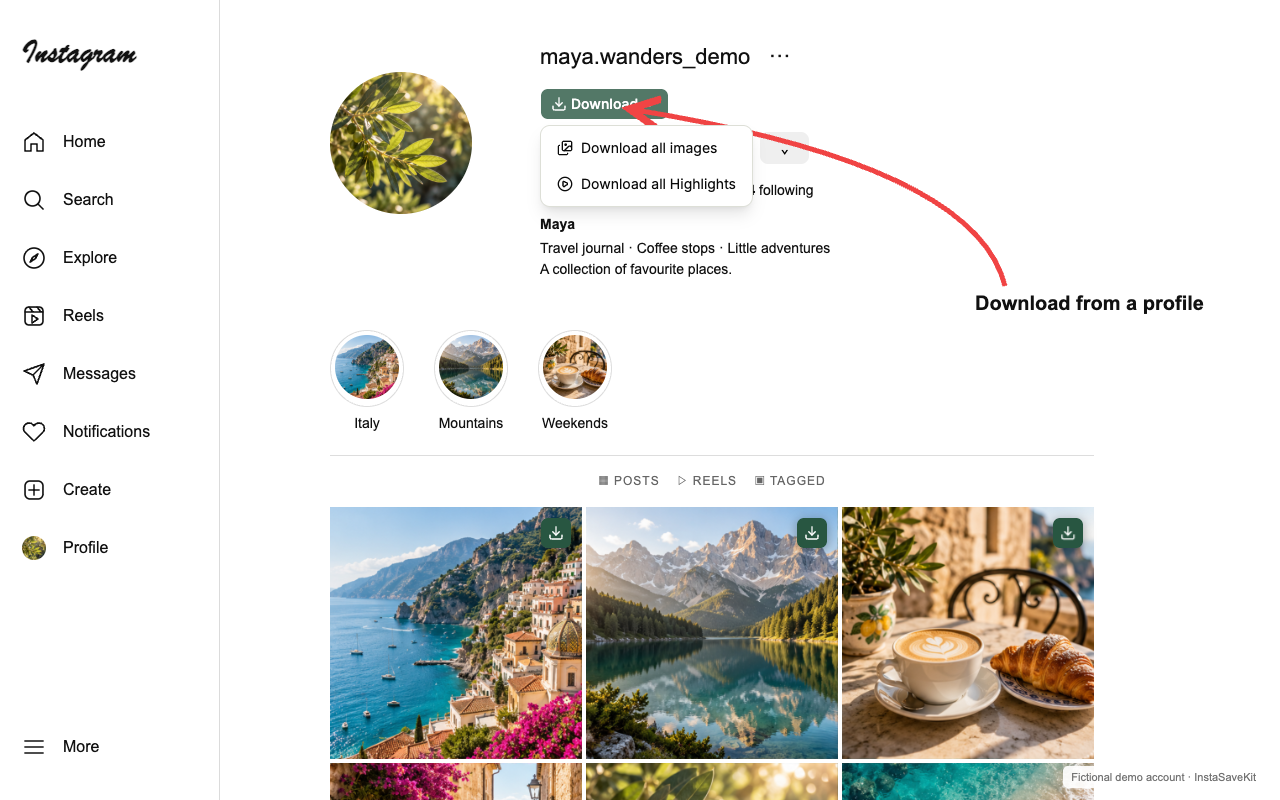
Download from a profile
Choose a profile batch from the Download menu.
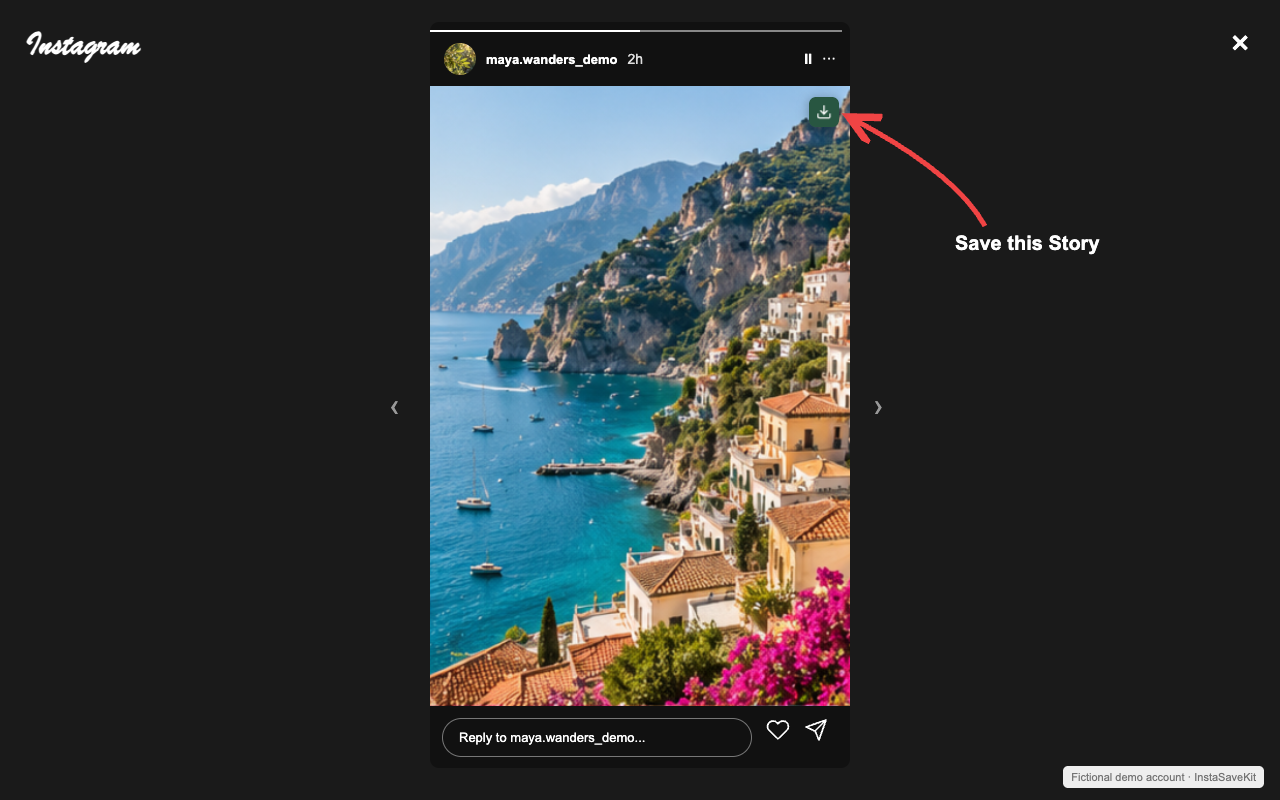
Save the current Story
Save the matched viewer item. Normal Story viewing is recorded.
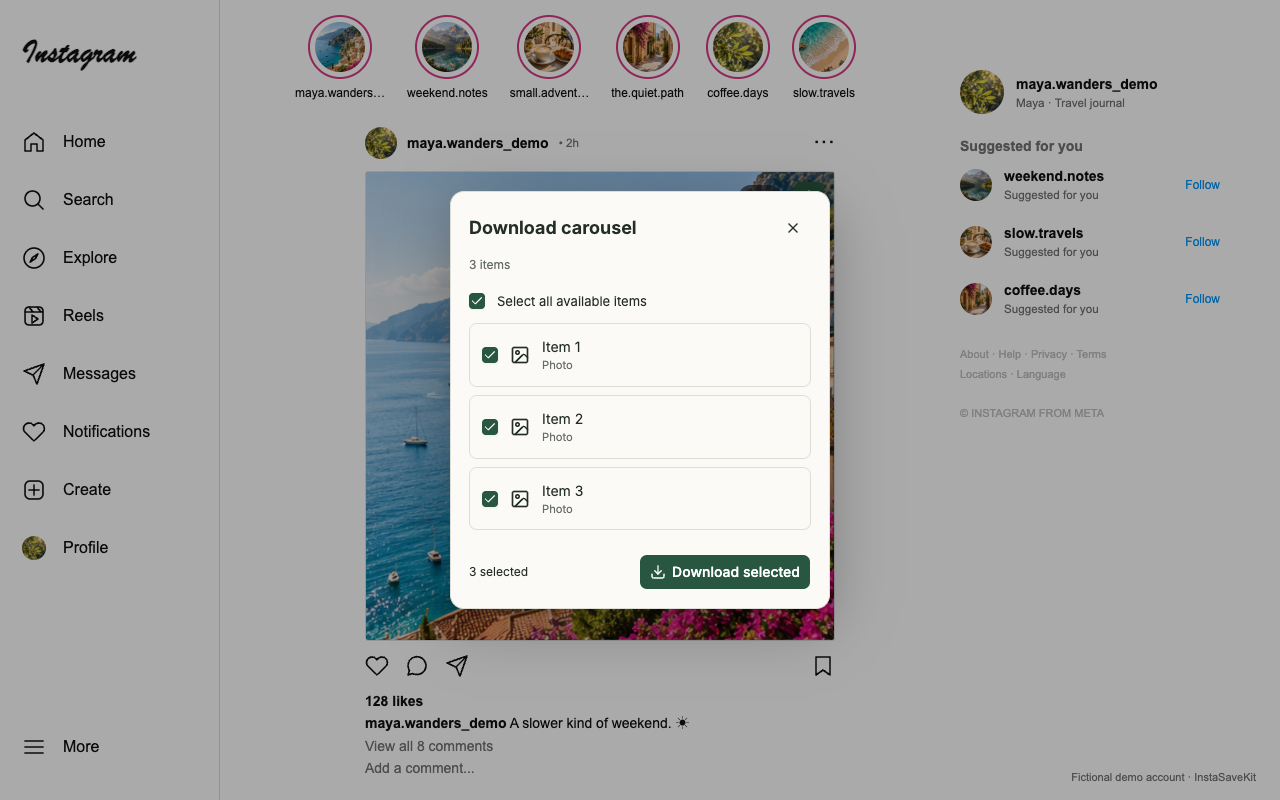
Choose carousel items
Select the available items you want, directly on Instagram.
Saved on your device
No separate login, extension analytics, advertising, media uploads or developer-hosted media proxy. Preferences and minimal recovery information stay in Chrome’s local extension storage.
Your session, your permissions
InstaSaveKit uses media accessible through your existing Instagram session. Availability varies, and normal Story viewing is recorded. Save only content you own or have permission to keep.
Read the extension privacy policyRavensMove’s website analytics and cookies are covered separately.
Need a hand?
Start with a refresh of your Instagram tab.
Why can’t I see a download icon?
Check that InstaSaveKit is enabled in desktop Chrome and allowed on Instagram, then refresh the tab. Open a post or normal Story/Highlight viewer and bring the media into view. Instagram layout changes can affect detection.
What if a download fails or a Story is unavailable?
Refresh the original post or viewer and explicitly retry. For a Story or Highlight, pause the item before trying again. If Instagram asks you to sign in or shows a rate limit, resolve that on Instagram or wait before resuming. The extension does not bypass access restrictions or guess missing media.
Why is a profile download partial or paused?
Keep the original profile tab open. Image discovery scrolls the profile to find posts; it may stop before finding everything. Only loaded Highlight albums can be included. Totals can grow as items are found. Review Details, then use Resume or Skip item after a pause. After refreshing, use Resume download or Show download progress in the profile menu for an unfinished run. Stop cancels pending work and keeps completed files; it is not a pause button.
Where are my saved files?
Files normally go to Downloads/InstaSaveKit. Check Chrome Downloads or the extension settings page for recent jobs. Open Chrome’s Extensions menu, choose Manage extensions, then InstaSaveKit → Details → Extension options. Enable Ask where to save each file to use Chrome’s file chooser. Closing settings or the carousel chooser does not stop downloads already started; unstarted items still need their original tab.
Does it save every format or work in the Instagram app?
InstaSaveKit is for the Instagram website in desktop Chrome. Media must be accessible in your session, and videos need an available direct MP4 rendition. Complete profile collections, every layout and video audio are not guaranteed. Mobile apps are not supported; Edge and Firefox have not been validated.
Stay in touch
Still stuck? Tell us your Chrome and extension versions, the type of media and the error shown. Don’t send passwords, cookies, signed media URLs or private content.